Getting Started with WhatsAPI: A Complete Guide
Introduction
WhatsApp has become one of the most important communication channels for businesses worldwide. With over 2 billion active users, it's a platform that your customers are already using daily. WhatsAPI makes it easy to integrate WhatsApp messaging into your applications with just a few API calls.
In this comprehensive guide, we'll walk you through everything you need to know to get started, from connecting your WhatsApp device to sending different message types.
Prerequisites
Before you begin, make sure you have:
- WhatsAPI Account - Create an account to get started
- A smartphone with WhatsApp installed (for device connection)
- Basic knowledge of REST APIs
- Your preferred programming language set up
- An API key (generated after account creation)
Connecting Your Device
The first step is to connect your WhatsApp device to WhatsAPI. This allows you to send messages through your existing WhatsApp account.
Step 1: Add a New Device
- Navigate to the Devices section in your dashboard
- Click the Add Device button
- A modal will open with a QR code
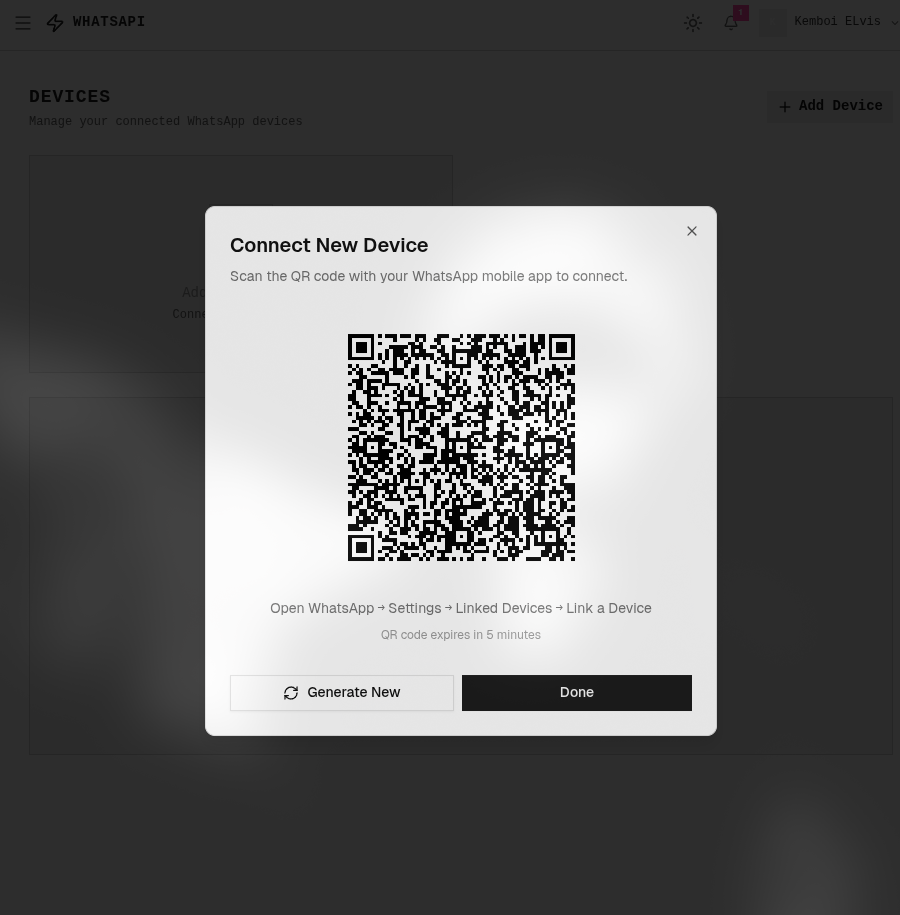
Step 2: Scan the QR Code
- Open WhatsApp on your smartphone
- Go to Settings > Linked Devices
- Tap Link a Device
- Scan the QR code displayed on the modal
Step 3: Verify Connection
After successful scanning, refresh the page to see your connected device.
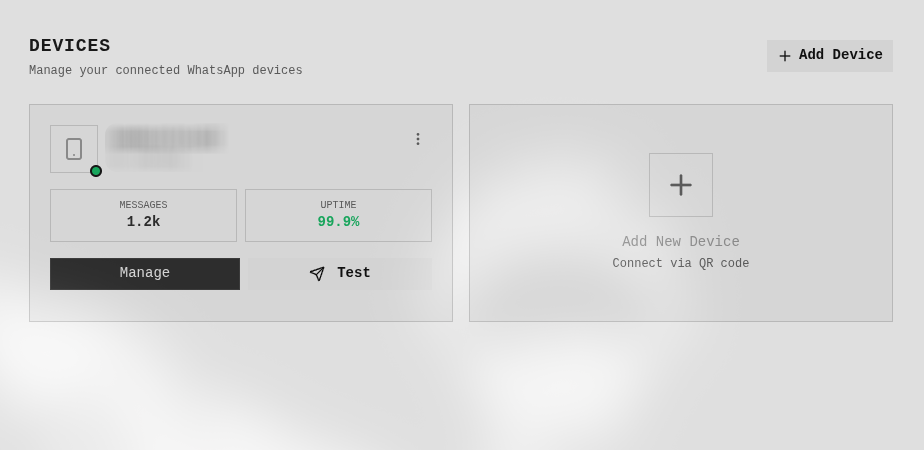
Your device is now connected and ready to send messages!
Getting Your API Key
To authenticate your API requests, you'll need an API key.
- Go to Settings > API Keys in your dashboard
- Click Generate New API Key
- Copy and securely store your API key
Never share your API key publicly or commit it to version control. Keep it secure!
Your API key will be used in the Authorization header for all API requests:
Authorization: Bearer YOUR_API_KEY_HERE
API Base URL & Endpoints
All API requests should be made to:
https://api.whatsapi.example/v1
Endpoint Structure
POST /api/whatsapp/devices/{device_id}/send        - Send single message
POST /api/whatsapp/devices/{device_id}/send-bulk    - Send bulk messages
Message Types Overview
WhatsAPI supports various message types. Here's a quick reference:
| Type | Description | Media Support |
|---|---|---|
text | Plain text messages | ❌ |
image | Image with optional caption | ✅ |
video | Video files | ✅ |
audio | Audio/voice messages | ✅ |
document | Files and documents | ✅ |
location | Geographic locations | ❌ |
contact | Contact cards | ❌ |
link | URLs with preview | ❌ |
poll | Interactive polls | ❌ |
list | Interactive lists/buttons | ❌ |
Sending Messages
4.1 Sending Text Messages
Send simple text messages to one or multiple recipients.
Request Payload:
{
  "type": "text",
  "phone": "+1234567890",
  "message": "Hello, World!"
}
Bulk Message Payload:
{
  "type": "text",
  "phone_numbers": ["+1234567890", "+0987654321"],
  "message": "Hello, World!",
  "time_delay": 1000
}
Parameters:
| Parameter | Type | Required | Description |
|---|---|---|---|
type | string | ✅ | Message type (text) |
phone | string | ✅* | Single recipient phone number |
phone_numbers | array | ✅* | Array of recipient phone numbers (bulk) |
message | string | ✅ | The text content |
time_delay | number | ❌ | Delay in ms between bulk messages |
4.2 Sending Images
Send images with optional captions. Supports JPG, PNG, and WEBP formats.
Request Payload:
{
  "type": "image",
  "phone": "+1234567890",
  "urls": ["https://example.com/images/product.jpg"],
  "caption": "Check out this amazing product!"
}
Bulk Message Payload:
{
  "type": "image",
  "phone_numbers": ["+1234567890", "+0987654321"],
  "urls": ["https://example.com/images/promo-banner.jpg"],
  "caption": "Special offer just for you!",
  "time_delay": 1000
}
Parameters:
| Parameter | Type | Required | Description |
|---|---|---|---|
type | string | ✅ | Message type (image) |
phone | string | ✅* | Single recipient phone number |
phone_numbers | array | ✅* | Array of recipient phone numbers (bulk) |
urls | array | ✅ | Array of image URLs |
caption | string | ❌ | Image caption text |
time_delay | number | ❌ | Delay in ms between bulk messages |
4.3 Sending Videos
Send video files to your contacts. Supports MP4, 3GP, and MOV formats.
Request Payload:
{
  "type": "video",
  "phone": "+1234567890",
  "urls": ["https://example.com/videos/promo.mp4"],
  "caption": "Watch our new promotional video!"
}
Bulk Message Payload:
{
  "type": "video",
  "phone_numbers": ["+1234567890", "+0987654321"],
  "urls": ["https://example.com/videos/demo.mp4"],
  "caption": "Check out this demo!",
  "time_delay": 2000
}
Parameters:
| Parameter | Type | Required | Description |
|---|---|---|---|
type | string | ✅ | Message type (video) |
phone | string | ✅* | Single recipient phone number |
phone_numbers | array | ✅* | Array of recipient phone numbers (bulk) |
urls | array | ✅ | Array of video URLs |
caption | string | ❌ | Video caption text |
time_delay | number | ❌ | Delay in ms between bulk messages |
4.4 Sending Audio Messages
Send audio files and voice messages. Supports MP3, OGG, and WAV formats.
Request Payload:
{
  "type": "audio",
  "phone": "+1234567890",
  "urls": ["https://example.com/audio/voice-message.mp3"]
}
Bulk Message Payload:
{
  "type": "audio",
  "phone_numbers": ["+1234567890", "+0987654321"],
  "urls": ["https://example.com/audio/announcement.mp3"],
  "time_delay": 1000
}
Parameters:
| Parameter | Type | Required | Description |
|---|---|---|---|
type | string | ✅ | Message type (audio) |
phone | string | ✅* | Single recipient phone number |
phone_numbers | array | ✅* | Array of recipient phone numbers (bulk) |
urls | array | ✅ | Array of audio URLs |
time_delay | number | ❌ | Delay in ms between bulk messages |
4.5 Sending Documents
Send documents, PDFs, and other file types.
Request Payload:
{
  "type": "document",
  "phone": "+1234567890",
  "urls": ["https://example.com/docs/invoice.pdf"],
  "file_name": "invoice_2026.pdf",
  "caption": "Please find the attached invoice"
}
Bulk Message Payload:
{
  "type": "document",
  "phone_numbers": ["+1234567890", "+0987654321"],
  "urls": ["https://example.com/docs/report.pdf"],
  "file_name": "monthly_report.pdf",
  "caption": "Your monthly report is ready",
  "time_delay": 1500
}
Parameters:
| Parameter | Type | Required | Description |
|---|---|---|---|
type | string | ✅ | Message type (document) |
phone | string | ✅* | Single recipient phone number |
phone_numbers | array | ✅* | Array of recipient phone numbers (bulk) |
urls | array | ✅ | Array of document URLs |
file_name | string | ❌ | Custom filename for the document |
caption | string | ❌ | Document caption/description |
time_delay | number | ❌ | Delay in ms between bulk messages |
4.6 Sending Locations
Share geographic locations with address details.
Request Payload:
{
  "type": "location",
  "phone": "+1234567890",
  "latitude": 37.7749,
  "longitude": -122.4194
}
Bulk Message Payload:
{
  "type": "location",
  "phone_numbers": ["+1234567890", "+0987654321"],
  "latitude": 37.7749,
  "longitude": -122.4194,
  "time_delay": 1000
}
Parameters:
| Parameter | Type | Required | Description |
|---|---|---|---|
type | string | ✅ | Message type (location) |
phone | string | ✅* | Single recipient phone number |
phone_numbers | array | ✅* | Array of recipient phone numbers (bulk) |
latitude | number | ✅ | Latitude coordinate |
longitude | number | ✅ | Longitude coordinate |
time_delay | number | ❌ | Delay in ms between bulk messages |
4.7 Sending Contacts
Share contact information with vCard format.
Request Payload:
{
  "type": "contact",
  "phone": "+1234567890",
  "contact_name": "John Doe",
  "contact_phone": "+1987654321"
}
Bulk Message Payload:
{
  "type": "contact",
  "phone_numbers": ["+1234567890", "+0987654321"],
  "contact_name": "Jane Smith",
  "contact_phone": "+1234567890",
  "time_delay": 1000
}
Parameters:
| Parameter | Type | Required | Description |
|---|---|---|---|
type | string | ✅ | Message type (contact) |
phone | string | ✅* | Single recipient phone number |
phone_numbers | array | ✅* | Array of recipient phone numbers (bulk) |
contact_name | string | ✅ | Full name of the contact |
contact_phone | string | ✅ | Phone number of the contact |
time_delay | number | ❌ | Delay in ms between bulk messages |
4.8 Sending Links with Preview
Send URLs that generate rich link previews.
Request Payload:
{
  "type": "link",
  "phone": "+1234567890",
  "link": "https://example.com/blog/latest-update",
  "caption": "Check out our latest blog post!"
}
Bulk Message Payload:
{
  "type": "link",
  "phone_numbers": ["+1234567890", "+0987654321"],
  "link": "https://example.com/promo/spring-sale",
  "caption": "Don't miss our spring sale!",
  "time_delay": 1000
}
Parameters:
| Parameter | Type | Required | Description |
|---|---|---|---|
type | string | ✅ | Message type (link) |
phone | string | ✅* | Single recipient phone number |
phone_numbers | array | ✅* | Array of recipient phone numbers (bulk) |
link | string | ✅ | The URL to send |
caption | string | ❌ | Context message before the link |
time_delay | number | ❌ | Delay in ms between bulk messages |
4.9 Sending Polls
Create interactive polls for group surveys and voting.
Request Payload:
{
  "type": "poll",
  "phone": "+1234567890",
  "question": "What time works best for the meeting?",
  "options": ["9:00 AM", "10:00 AM", "2:00 PM", "3:00 PM"],
  "max_answer": 1
}
Bulk Message Payload:
{
  "type": "poll",
  "phone_numbers": ["+1234567890", "+0987654321"],
  "question": "Which feature should we prioritize?",
  "options": ["Dark Mode", "Notifications", "Export Data", "API Access"],
  "max_answer": 1,
  "time_delay": 1000
}
Parameters:
| Parameter | Type | Required | Description |
|---|---|---|---|
type | string | ✅ | Message type (poll) |
phone | string | ✅* | Single recipient phone number |
phone_numbers | array | ✅* | Array of recipient phone numbers (bulk) |
question | string | ✅ | Poll question |
options | array | ✅ | Array of poll options (2-20 items) |
max_answer | number | ✅ | Maximum selections allowed per user |
time_delay | number | ❌ | Delay in ms between bulk messages |
4.10 Sending Interactive Lists
Send interactive list messages with buttons for better engagement.
Request Payload:
{
  "type": "list",
  "phone": "+1234567890",
  "title": "How can we help you?",
  "description": "Select an option below",
  "button_text": "View Options",
  "sections": [
    {
      "title": "Products",
      "rows": [
        {
          "id": "prod_1",
          "title": "Product Catalog",
          "description": "Browse our products"
        },
        {
          "id": "prod_2",
          "title": "Pricing",
          "description": "View our pricing plans"
        }
      ]
    },
    {
      "title": "Support",
      "rows": [
        {
          "id": "supp_1",
          "title": "FAQ",
          "description": "Frequently asked questions"
        },
        {
          "id": "supp_2",
          "title": "Contact Us",
          "description": "Get in touch with our team"
        }
      ]
    }
  ]
}
Bulk Message Payload:
{
  "type": "list",
  "phone_numbers": ["+1234567890", "+0987654321"],
  "title": "What would you like to do?",
  "description": "Choose from the options below",
  "button_text": "Select",
  "sections": [
    {
      "title": "Account",
      "rows": [
        {
          "id": "acc_1",
          "title": "View Profile",
          "description": "See your account details"
        },
        {
          "id": "acc_2",
          "title": "Settings",
          "description": "Manage your preferences"
        }
      ]
    }
  ],
  "time_delay": 1000
}
Parameters:
| Parameter | Type | Required | Description |
|---|---|---|---|
type | string | ✅ | Message type (list) |
phone | string | ✅* | Single recipient phone number |
phone_numbers | array | ✅* | Array of recipient phone numbers (bulk) |
title | string | ✅ | List title |
description | string | ❌ | List description |
button_text | string | ✅ | Button text |
sections | array | ✅ | Array of sections with rows |
time_delay | number | ❌ | Delay in ms between bulk messages |
Code Examples
JavaScript / Node.js
const axios = require("axios");

const API_KEY = "YOUR_API_KEY";
const DEVICE_ID = "+12345678:2@s.whatsapp.net";
const BASE_URL = "https://api.whatsapi.example/v1";

const sendMessage = async (payload) => {
  try {
    const response = await axios.post(
      `${BASE_URL}/api/whatsapp/devices/${DEVICE_ID}/send`,
      payload,
      {
        headers: {
          Authorization: `Bearer ${API_KEY}`,
          "Content-Type": "application/json",
        },
      },
    );
    return response.data;
  } catch (error) {
    console.error("Error:", error.response?.data || error.message);
    throw error;
  }
};

// Send text message
await sendMessage({
  type: "text",
  phone: "+1234567890",
  message: "Hello from Node.js!",
});

// Send image
await sendMessage({
  type: "image",
  phone: "+1234567890",
  urls: ["https://example.com/image.jpg"],
  caption: "Check this out!",
});
Python
import requests

API_KEY = 'YOUR_API_KEY'
DEVICE_ID = '+12345678:2@s.whatsapp.net'
BASE_URL = 'https://api.whatsapi.example/v1'

def send_message(payload):
    headers = {
        'Authorization': f'Bearer {API_KEY}',
        'Content-Type': 'application/json'
    }

    response = requests.post(
        f'{BASE_URL}/api/whatsapp/devices/{DEVICE_ID}/send',
        json=payload,
        headers=headers
    )
    return response.json()

# Send text message
print(send_message({
    'type': 'text',
    'phone': '+1234567890',
    'message': 'Hello from Python!'
}))

# Send image
print(send_message({
    'type': 'image',
    'phone': '+1234567890',
    'urls': ['https://example.com/image.jpg'],
    'caption': 'Check this out!'
}))
cURL
# Send text message
curl -X POST https://api.whatsapi.example/v1/api/whatsapp/devices/+12345678:2@s.whatsapp.net/send \
  -H "Authorization: Bearer YOUR_API_KEY" \
  -H "Content-Type: application/json" \
  -d '{
    "type": "text",
    "phone": "+1234567890",
    "message": "Hello from cURL!"
  }'

# Send image
curl -X POST https://api.whatsapi.example/v1/api/whatsapp/devices/+12345678:2@s.whatsapp.net/send \
  -H "Authorization: Bearer YOUR_API_KEY" \
  -H "Content-Type: application/json" \
  -d '{
    "type": "image",
    "phone": "+1234567890",
    "urls": ["https://example.com/image.jpg"],
    "caption": "Check this out!"
  }'
Bulk Messages with Template Variables
You can personalize bulk messages using template variables. Use {{ variable_name }} syntax in your message and provide values for each recipient.
Payload with Template Variables:
{
  "type": "text",
  "phone_numbers": ["+1234567890", "+0987654321"],
  "message": "Hi {{ name }}, your order #{{ order_id }} has been shipped!",
  "params": {
    "+1234567890": {
      "name": "John",
      "order_id": "ORD-001"
    },
    "+0987654321": {
      "name": "Jane",
      "order_id": "ORD-002"
    }
  },
  "time_delay": 1000
}
Error Handling
WhatsAPI uses standard HTTP status codes. Here's a quick reference:
| Status Code | Meaning | Description |
|---|---|---|
200 | OK | Request successful |
400 | Bad Request | Invalid parameters |
401 | Unauthorized | Invalid or missing API key |
403 | Forbidden | Device not connected |
404 | Not Found | Device or resource not found |
429 | Too Many Requests | Rate limit exceeded |
500 | Server Error | Something went wrong on our end |
Error Response Format
{
  "success": false,
  "message": "Device not found",
  "data": null
}
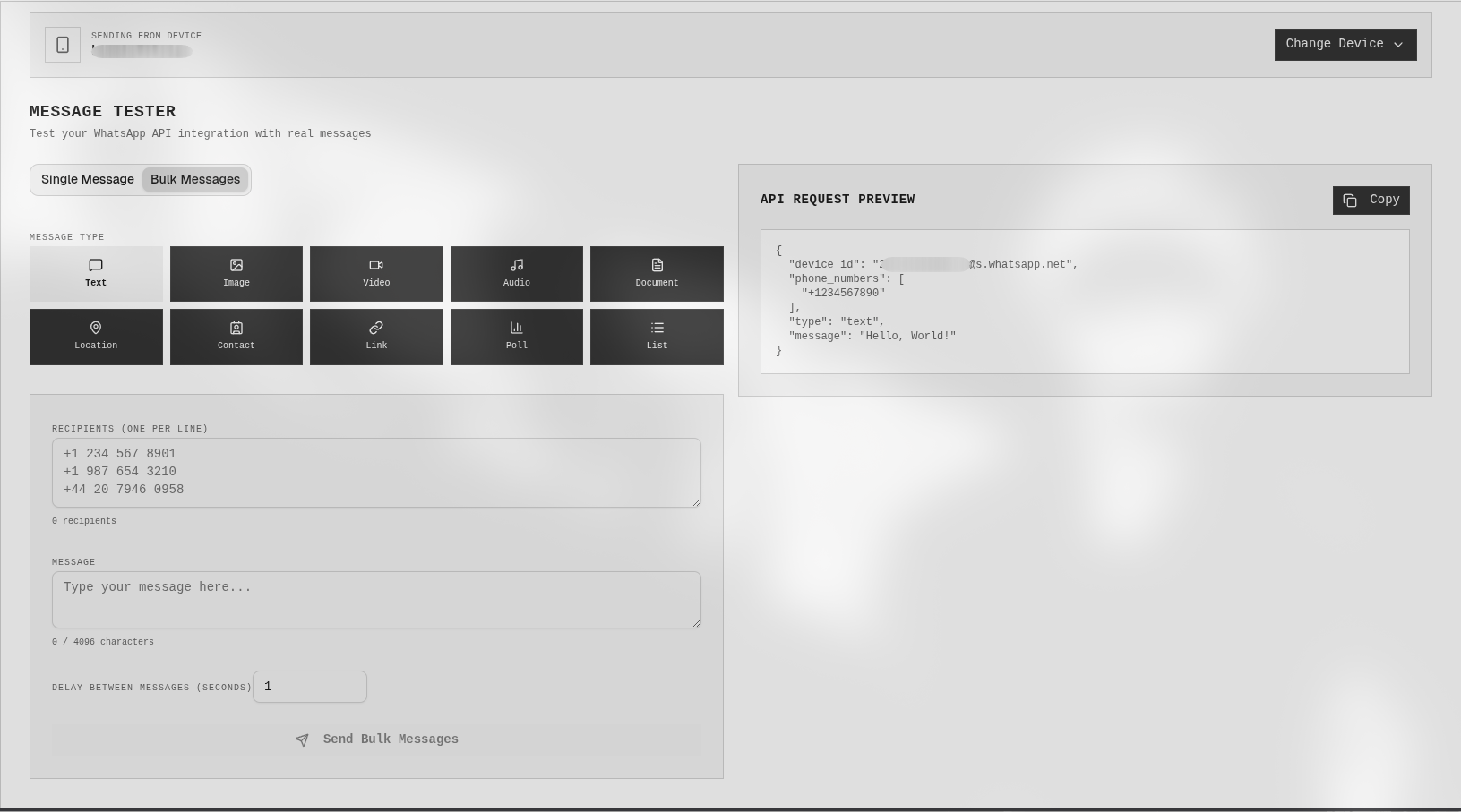
Testing with Dashboard
You can test all message types directly from your dashboard:
- Navigate to Test Message
- Select your connected device
- Choose the message type
- Fill in the required fields
- Click Send
This is the fastest way to test your integration before writing code.
Need Help?
If you encounter any issues:
- Check our FAQ for common questions
- Contact support@whatsapi.example